AI camera movement: show the model a clip of the move you want
Write "slow push in" and the camera moves a little differently on every render.
In Nova's storyboard, every shot has two locks: one for how the camera moves, one for who stands where in the frame. This page follows the Nova Academy lessons to show how to use both, what they cost, and which shots are worth it.
1. Lock one: Camera move
Find the shot in the storyboard and click "Camera move" in its button row. A picker opens: "Pick a camera-move reference (hard constraint)". Choose a reference clip, such as a push in, pull out, pan or orbit, and click "Use this move". At render time, Nova feeds that clip's camera pacing to the model along with the shot.
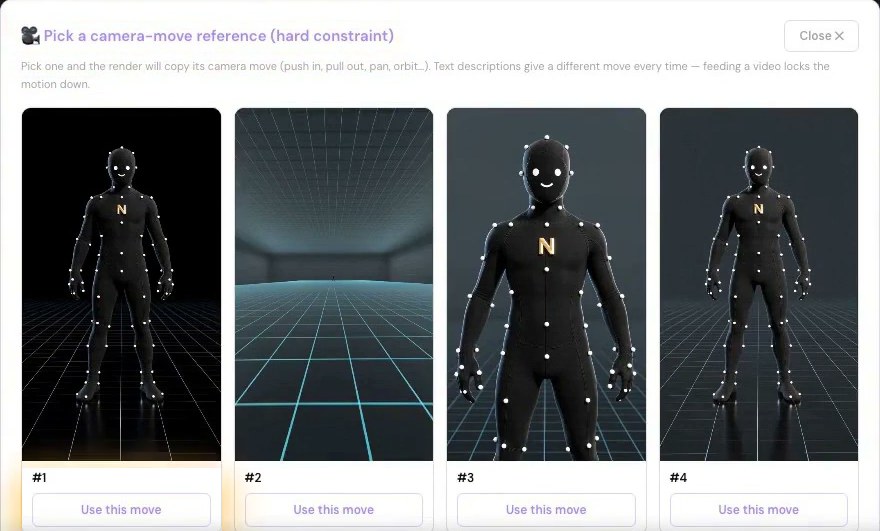
The product puts it this way: text descriptions give a different move every time, and feeding a video locks the motion down. The lesson puts it more plainly: it's a lot steadier than describing the move in words. It doesn't promise every frame follows the clip.
You can swap the clip for another one, or clear it and go back to text-driven motion.
→ Lesson 03-04 "Camera-move and framing constraints: lock it before you draw — but locks aren't free"
2. A shot with a camera-move reference costs × 1.25
On Seedance models, the shot you attach a reference to is charged at its tier price × 1.25, rounded up. Per 5 seconds, at today's prices:
| Tier | Without | With a camera-move reference |
|---|---|---|
| Mini 480p | 55 | 69 |
| Mini 720p | 110 | 138 |
| Pro 720p | 220 | 275 |
| Pro 1080p | 540 | 675 |
Longer shots cost more. In the lesson, a 7-second Mini 480p shot went from 77 credits to 97. On the ad line, a 5-second 720p shot is 340, and 425 with a reference (Lessons 01-T3 and 01-K). The price on the storyboard button is the one that counts.
So don't attach one to every shot. As the lesson says: attach it to the few shots where the camera is really off and text can't fix it.
3. Lock two: the photoreal grid locks the blocking
The same row has "Photoreal reference grid (hard constraint)". It draws the characters and props in this beat into one photoreal multi-panel grid that works as a template for the render, and locks down three things:
- Blocking: who stands where, and how the shot is framed
- Faces and wardrobe: no swapped faces, no costume changes
- Prop size: props stay the same size
The grid is about 50 credits and applies to this beat only. You see it first, and the render uses it only after you click "✓ Lock blocking to this".
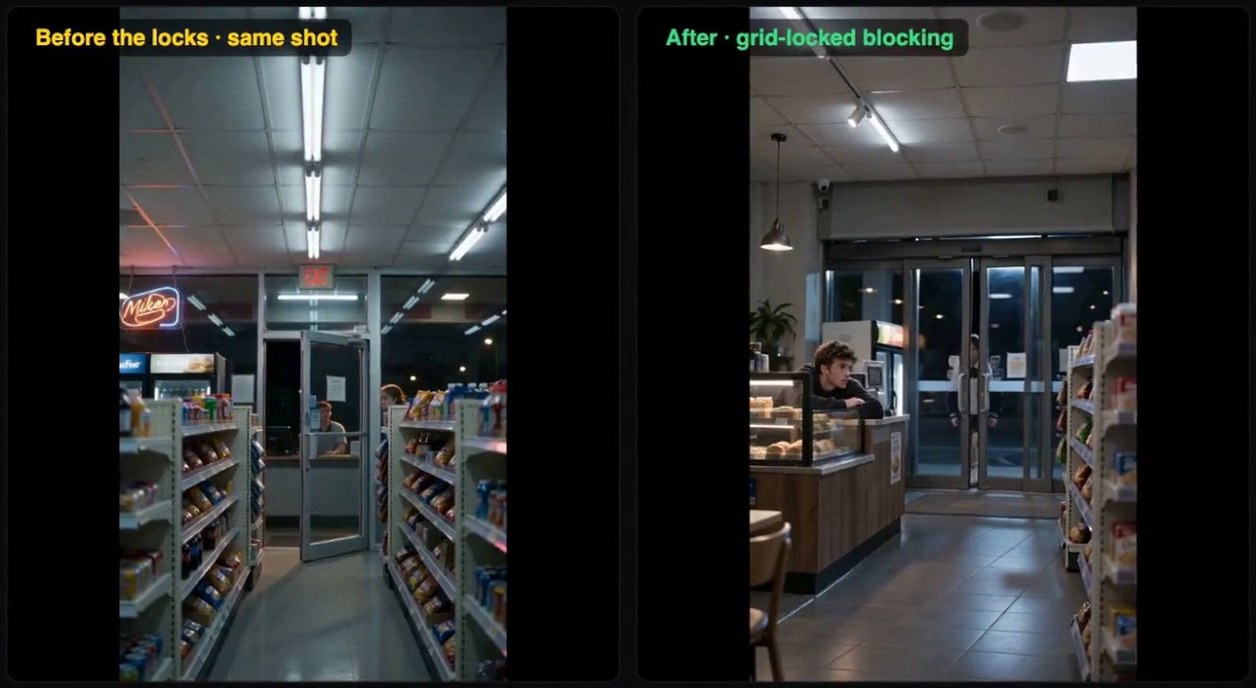
Both sides Made in Nova. Left: before the locks, same shot. Right: after, grid-locked blocking.
When to use it: in the product's words, when text alone keeps producing bad takes or inconsistent characters.
4. You can borrow someone else's camera move
Nova has a shared library of camera-move reference clips. Clips that users upload go in only after an official review. The library page is for browsing. To use a clip, go back to the shot in the storyboard and attach it with "Camera move".
→ Lesson 07-T3 "Asset and camera-move libraries: everything you've made, and moves you can borrow"
5. If you want to set the framing first
To set up camera position and blocking before you render, use the Director Stage (block the shot with 3D figures, render a keyframe) or Sketch (drag stick figures into place, render a photoreal keyframe) as the reference. → Lessons 09-07 and 09-08
FAQ
Can AI move the camera for me automatically? You pick and attach the camera-move reference yourself; Nova doesn't choose one for you. Describe the move in text only and it comes out differently each time. To get a specific move, attach a reference clip. It's a lot steadier than describing it in words.
How much more does a camera-move reference cost? On Seedance models, that shot is charged at its tier × 1.25. For example, Pro 720p goes from 220 to 275 credits per 5 seconds at today's prices.
What's the difference between a camera-move reference and the grid? The camera-move reference controls how the camera moves. The grid controls who stands where, faces and wardrobe, and prop size. Each does its own job, and you only turn them on for the shots that need them.
Where to start
- Just looking: sign up free, no card needed, and watch the free lessons.
- Camera-move references and the grid are in both Creator and Studio. The camera-move library lesson is in Studio. Compare courses
- How to break a script into shots: AI storyboard.