AI cinematic look: lock how the whole film looks before you render
When AI video doesn't look like a film, the model often isn't the problem. Every shot is doing its own thing: this one runs cold, the next one warm, and the light doesn't match. Most of what reads as "cinematic" comes from one consistent style, grade and lighting across the whole film.
Nova has a master switch for each of these. Set them before you start and every image and clip after that follows them. This page follows the lessons in Nova Academy to show where each switch is and what changing it costs.
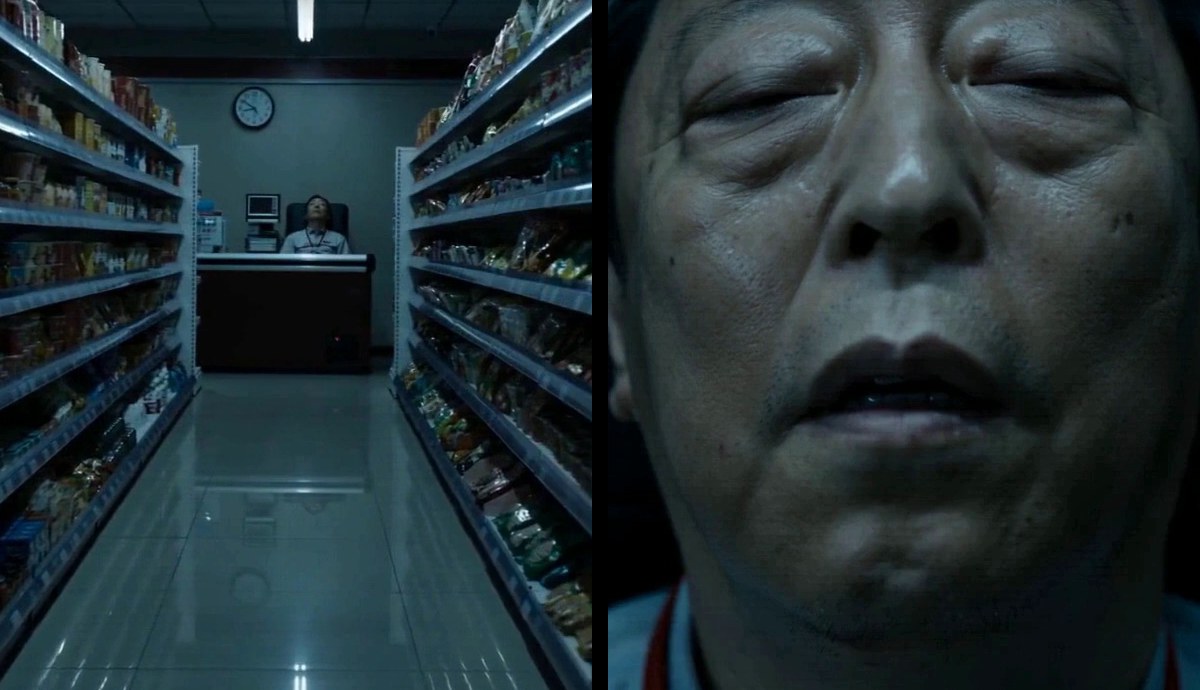
Made in Nova
1. Before you start: visual style and film grade
After you import a script, Nova reads it and pre-selects a few things for you: story type, aspect ratio, dialogue language and visual style. Visual style defaults to Cinematic Realism and the film grade to AI Auto. You can change both.
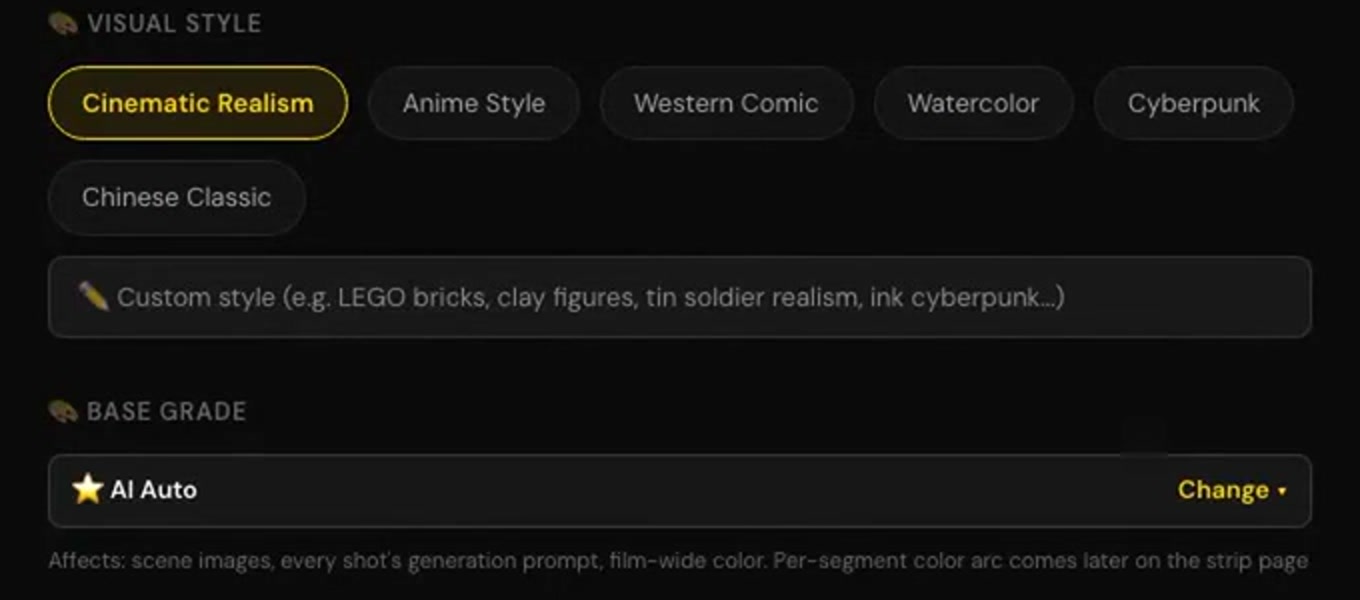
The same goes for ads: on the ad workbench, aspect ratio, in-film language and grade are settings, and changing them is free.
→ Lesson 09-01 "You already have a script: from a file to a cast list" → For ads: 01-T2 "The ad workbench: which buttons write, and which are just settings" (Starter)
2. Pick a grade, or match a reference
Click Change next to the film grade and you get a row of ready-made grades, each shown on the kind of scene it suits — Teal & Orange, Kodak 2383 Print, Film Noir B&W and more. Pick one.
If you already have footage you want to match, use Match a reference: drop in a few stills or a clip and it reads the grade from them. A video is sampled on your own machine; only the sampled frames are uploaded, never the file. You get a similar ready-made grade, plus one written just for this film.
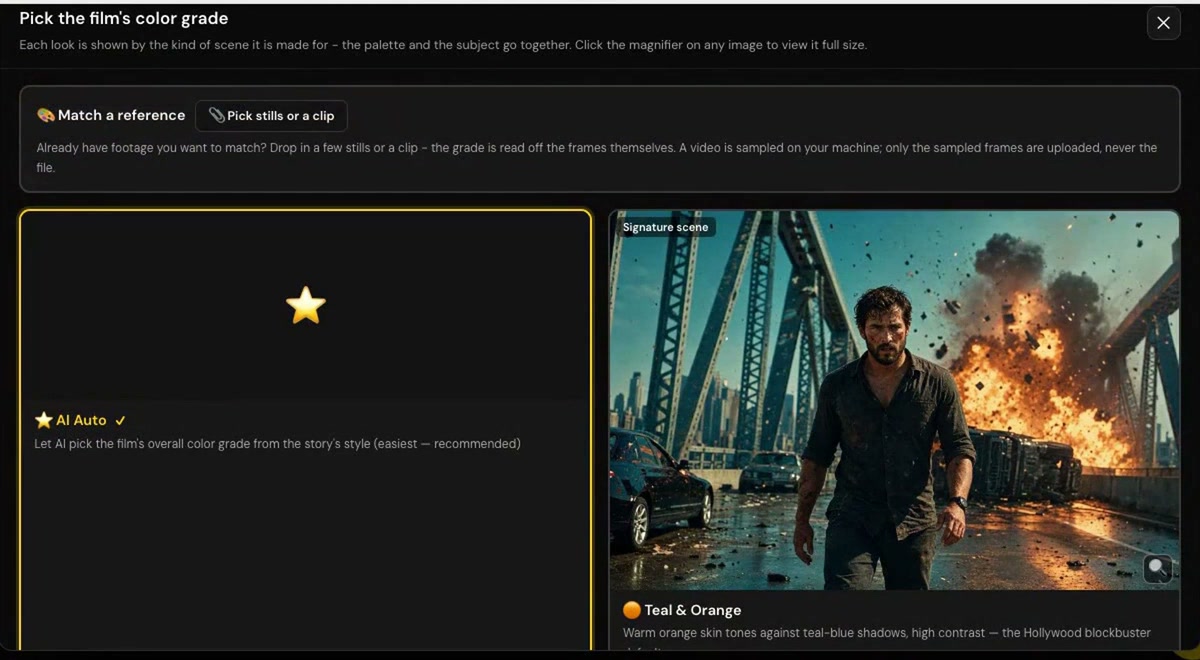
Two things to know:
- Reading a reference is charged every time, whether or not you end up using it.
- After you choose it, go back to the settings page and press Confirm at the bottom, or it isn't saved.
→ Lesson 10-04 "Learn wardrobe, and match a reference grade: learn once, use it for the whole show"
The product also has a Look button (not covered in the lessons). It sits under the grade on the storyboard page and opens "Compare nine looks on one shot": the same shot in nine looks side by side (lighting, film stock, texture and so on), such as "Low-Key, Subject Readable". It applies to scene plates, scene images with cast and realistic storyboard sheets; headshots and outfit sheets never change. You can make it the default for the whole show or use it for one episode only. Trying it on a shot renders a real image, which is charged.
3. The Visual Bible: the master switch for the film's look
Main colors, colors to avoid, lighting and wardrobe style all live in the Visual Bible. It's added to the front of every image and video prompt, so a change here reaches every image and clip. Viewing, editing, saving and regenerating the Visual Bible are all free.
The Visual Bible is written automatically when shots are laid out. If the page is still empty, press regenerate to make one yourself — that's free too.
→ Lesson 09-06 "The Visual Bible: the master switch for how the film looks — free to change, but old images don't follow"
4. Changes don't reach old images
This is the easy one to trip on: after you change the grade or the Visual Bible, only images and videos made afterwards follow it. What you've already rendered stays as it was. To update it, render it again, at the normal price.
The visual style works the same way: if you switch it on the characters page, everything is only redrawn when you confirm the redraw, and that's charged per image.
So the order is: settle the style, grade and Visual Bible first, then render in bulk.
→ Lesson 10-T1 "Characters workspace · character tab: which buttons show a price, which don't"
FAQ
How do I get a cinematic look in AI video? Before you start, set the visual style and film grade for the whole film, then spell out the main colors and lighting in the Visual Bible. Once those are set, every shot follows the same rules.
Does changing the grade cost credits? Picking a ready-made grade in settings and editing the Visual Bible are free. Reading a reference grade is charged, and re-rendering existing images in the new grade is charged at the normal price.
Can I match the look of a film I like? Yes. Use Match a reference and drop in a few stills or a clip. Only use footage you have the right to use.
Where to start
- Just looking: sign up free, no card needed, and watch the free lessons.
- Grade settings for ads: 01-T2 is in Starter. Style, grade and the Visual Bible for films are in Creator. Compare courses
- Keeping the same face in every shot: consistent characters in AI video.