Logo intro and outro: give your film an opening and an ending
To be clear up front: this page is about adding an intro and outro to a film you make in Nova. Nova isn't a standalone intro maker.
Film projects and ads do this in different places, so they're covered separately below. Some steps cost credits and some don't, and each one is marked.
Film projects: in the production room
### Intro: make the cover first, then turn it into the intro 1. Click "🎨 AI Generate Cover" to make an image with the title on it. 50 credits. 2. In the "🎬 Intro" row, turn on "Put it in the film" and pick "Episode Cover" as the source. It becomes a 3-second fade-in, fade-out intro. This step is 0 credits.
The order matters. Without a cover, the intro row tells you "Please generate the episode cover above first". The intro is off by default.
### Outro: upload a logo and generate a logo animation 1. Upload your logo in the "🎞 Outro" row. 2. Pick a style. There are 8, and each one is just a different prompt, so the price is the same. 3. Click "▶ Generate" to make a 5-second logo animation.
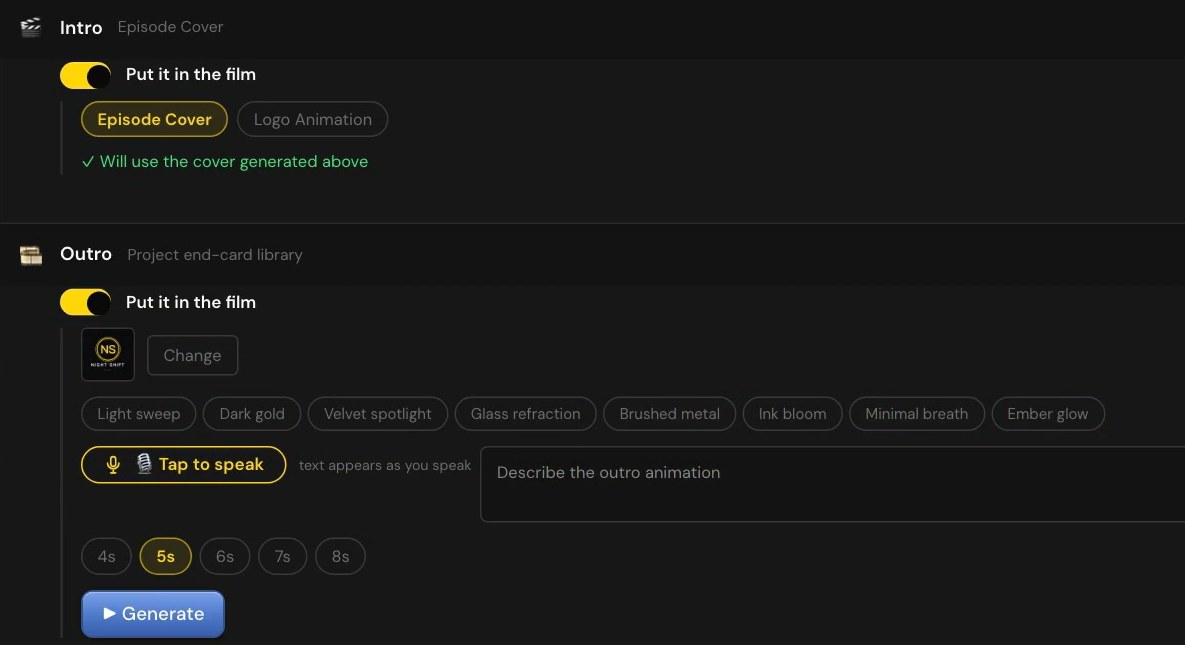
The price follows the episode's render quality: 5 seconds at 720p is 220 credits, billed by the second, so 6 seconds is 264 and 8 seconds is 352, at today's prices. This button in the production room doesn't show a price. If you don't like the result and want another style, that's charged again.
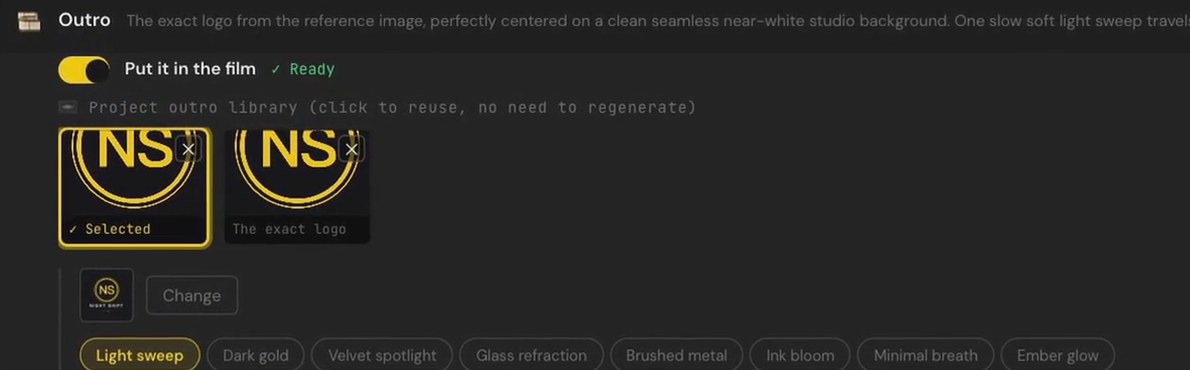
→ Lesson 05-05 "Intro and outro: cover 50, logo animation 220, same price on both lines"
The production room's seven material rows include one for the intro and one for the outro: Lesson 05-T2 "The production room: clips, seven material rows, the final merge". The export desk also has "▶ Generate" on its intro and outro cards: you write a description, pick 4 to 8 seconds, and it renders at the project's quality. The price is printed on that button, so go by what it shows; regenerating charges again. Lesson 05-09 "The export desk: merging is free, "Generate" on intro/outro isn't".
Ads: in the delivery page's post-production settings
Ads don't have a "cover as intro" step. On the delivery page there are three things to do with the ending and your logo, and they're easy to mix up:
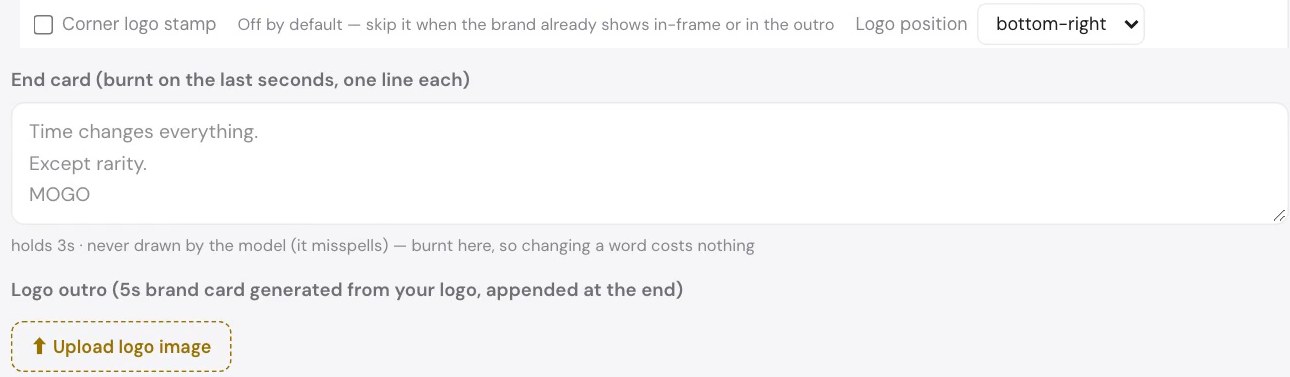
- End card (burnt on the last seconds, one line each): the text is burned onto the ending. 0 credits, and changing a word doesn't need a re-render.
- Logo outro: click "Upload logo image", then "Generate logo outro" to make a 5-second brand card. The price is on the button and follows the quality you picked on the storyboard page: 480p 100, 720p 220, 1080p 540 at today's prices (go by what the button shows), charged every time you press it. You can describe what you want or leave it blank. You can make several and pick one; the one with the gold frame is appended at the end. Remove them all with ✕ and there's no outro.
- Corner logo stamp: a small logo laid over a corner afterwards. 0 credits, off by default. The note next to it says to skip it when the brand already shows in-frame or in the outro.
→ Lesson 01-T4 "The delivery page: post settings, the ending, combine, and what appears after"
What "same price on both lines" means
The ad logo outro and the film outro logo animation use the same engine. So at 720p it's 220 credits, not the 340 an ad shot costs. From lesson 05-05:
> The ad line uses the same engine — also two twenty, not three forty.
FAQ
Does an intro cost credits? For film projects it's two steps: the cover is 50 credits, and turning it into the intro is 0. Ads don't have a cover-as-intro step.
How many credits is a logo animation? It depends on quality: 5 seconds at 720p is 220 credits at today's prices. Film projects follow the episode's render quality, and that button in the production room doesn't show a price; ads follow the quality you picked on the storyboard page, so go by what the button shows. A new style is charged again.
Does a line of text at the end cost credits? On ads, the end card is burned on: 0 credits, and changing it doesn't need a re-render.
Where to start
- Just looking: sign up free, no card needed, and watch the free lessons.
- Film intros and outros are in Creator and Studio; the ad delivery page is in Starter and up. Compare courses
- For subtitles, see AI subtitles. To show a client a watermarked sample first, see Watermarked previews for clients.